Tips for Tips for Creating Accessible Text in Blackboard
Making your course materials more accessible can be intimidating, but working with the content that you author directly in Blackboard using the content editor is an easy way to get started. The tools that you need to improve the accessibility of this content are all available in the content editor, and the Ally accessibility checker can help by providing feedback and guidance in real-time!
This guide provides some tips for improving the accessibility of the content that you create with the Content Editor in the Blackboard Ultra Course View. The same content editor is used in most tools in Blackboard, such as when you are creating an Ultra Document, an Assignment, a Test, a Discussion Board prompt or post, and more.
Headings
Reading long, dense text documents can be difficult for students; adding structure can help students organize and process texts. Headings can help students navigate and comprehend texts, and are essential for students using a screen reader.
Headings are added using the Text style icon in the content editor toolbar. Select your text, then click the Text style icon to choose the appropriate heading level.
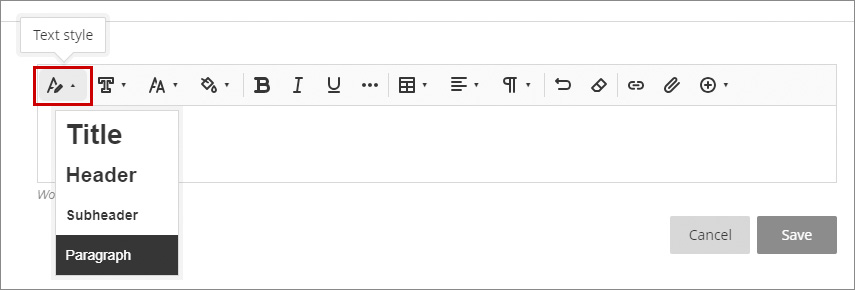
Headings should always be assigned in order, starting with Title, even when the description doesn't match the function of the text that you are formatting. Think of it as an outline, where your top-level headings use the Title style, your second-level headings use Header, and your third-level headings use Subheader:
- Title
- Header
- Subheader
- Header
- Header
- Title
Alternative Text for Images
Text with poor contrast can be difficult to read for everyone, but especially for students with visual impairments such as color blindness. For text in the content editor, the problem is likely that the text color is too light.
- Use the Survey tool in Blackboard whenever you want to gather aggregate responses from students
The survey tool is a simple way to gather feedback from students at the beginning, middle, or end of the course. Also, if introducing a new pedagogical approach or tool, consider conducting a survey of students to gain their perspective on overall effectiveness. - Remind students that surveys are anonymous
Surveys can be especially useful to gain authentic feedback from students, especially if they are reassured that their feedback is anonymous. Remind students that you can't see their individual responses, just a confirmation of whether or not they completed the survey. - If the survey is more than 5 questions, consider displaying 1 question at a time
For large surveys, they can be more manageable for students if displayed 1 question at a time rather than all at once. - If desiring to share findings with students, copy/paste results into Word to post in Blackboard
While there currently is no easy way to automatically display aggregate results from a survey to students, the results that you see as an instructor can be copied/pasted into a Word document and then posted in Blackboard for students to view if desired.
Tests/Quizzes
The Tests tool in Blackboard is the tool to use for automatically graded assessments. Scores are automatically added to the Blackboard Grade Center. Faculty have several options for creating tests, including typing into the question-by-question format provided by Blackboard, copying and pasting questions into the Blackboard format (which allows one to work offline and take advantage of a word processor's spell check), and uploading questions in a pre-established format. The term "test" is used in Blackboard to refer to any graded assessment (formative or summative) consisting of more than one question.
- Format questions in MS Word and import using CSI's Blackboard Quiz Generator
When transferring existing assessment questions from Microsoft Word to Blackboard, consider using Oklahoma Christian University's Blackboard Test Generator. This tool was developed to help you create quizzes for Blackboard. It allows you to type up the quiz offline in a program like Word or Notepad and not have to go through the trouble of making long quizzes via the Blackboard web interface. Simply follow the documentation provided for formatting existing questions and then copy/paste into the generator's text box. Simply type or paste your quiz in the text area and click the Create Quiz button. This will produce a zip file that you can import into the Pool Manager in Blackboard. - Add test questions to pools for easy reuse and expansion
Creating question pools in Blackboard of questions provides added options for question reuse as well as the ability to export questions for reuse or repurpose in other courses. - Check with your textbook publisher to see if they offer question pools for your textbook
Some publishers now offer electronic pools of questions organized by textbook chapter that are pre-formatted for Blackboard. - Create tests from random blocks of question pools whenever possible
To further deter cheating, create online tests that pull questions at random from question pools. This not only further individualizes each student's assessment, but also makes it very easy to expand the possible questions included in future assessments. Faculty can simply add more questions to the question pools to in effect expand the possible questions to be included in the test(s) built from them. - Pay attention to test options when deploying
Creating a test in Blackboard is essentially a 2-step process: 1) Build the test; 2) Deploy the test. After deploying the test, be sure to modify the test options to match the desired assessment experience. (e.g. timed test; 1 attempt, customized feedback) - Randomize questions
Among the many test options, choosing to randomize the questions will ensure that each student will be presented with the quiz questions in a random order.
Discussions
- Provide clear expectations for how discussions will be assessed
Asynchronous discussion online via the Blackboard Discussion Board is a very well established approach to assessing student learning online. Be very clear to students at the beginning of the course what the expectations are for the online discussion and how their contributions will be assessed. - Use Blackboard discussion grader; grade by forum, not thread
Blackboard's discussion grading capabilities allows for easy collection of student contributions to a forum and for assigning a score for student posts. When enabling discussion grading, select the option to grade by forum as Blackboard will then only add a single column to the grade center for the forum rather than columns for each thread. It is highly advised to avoid grading by thread unless for a very specific discussion where students can only reply to instructor-created threads. - After entering scores for contributions, enter comments directly in the Grade Center
The discussion grading in Blackboard 8 only allows for faculty to add grade with a score but not enter any comments. However, after entering the scores for contributions, comments can be added to the scores at the corresponding column in the Grade Center.
Assignments
- Use the Assignment Manager in Blackboard for collecting student work electronically
The Assignment Manager in Blackboard enables users with the role of Faculty or TA in Blackboard to create Assignments in any content areas and post them for Students to complete. Creating an assignment automatically creates an item in the Grade Center that holds all the submitted student assignments. - If desiring specific formatting, provide a template with the assignment's instructions
When creating an assignment, attach to the assignment any instruction or template files students are to use in completing the assignment. Doing so, students won't need to search other content areas within the course to find the needed files. - Download submitted assignments for offline viewing/grading
View details for viewing and downloading all submitted assignments (PDF). - Enter feedback electronically in submitted files & return to the students via the Blackboard Assignment
There are three approaches to providing feedback to submitted assignments within Blackboard: 1) Enter feedback in the comments box back to the student for the given assignment; 2) Annotate comments on top of the electronic version of the submitted assignmend using the Inline Grading feature; 3) Attach a revised version of the file submitted by the student that includes comments directly in the file. Consider what format of feedback would be most helpful to your students as well as be most efficient for you to provide. Many faculty find that entering feedback directly in submitted files, either using simply a different color of text or an advanced commenting feature such as the Track Changes option is MS Word is the most efficient approach to providing detailed feedback. - If attaching feedback to assignment, remind students to view attached file(s)
It may not be obvious to students that feedback is available in the attached file(s) that have been returned back to them. Simply enter in the comments box back to the student that the attached file contains feedback.
SafeAssignments
SafeAssign is a free plagiarism prevention tool that allows for you to protect the originality of work and ensure a fair playing ground for all your students. SafeAssign is integrated with Blackboard and prevents plagiarism by detecting unoriginal content in students papers within your existing teaching and learning environment. SafeAssign can also further deter plagiarism by creating opportunities to educate students on proper attribution and citations while properly leveraging the wealth of information at their disposal.
- Use SafeAssign for substantial written assignments
For any original writing assignments, consider using SafeAssign instead of the Assignment tool. View complete details on SafeAssign. - Inform students in the syllabus of the requirement to use SafeAssign
As the faculty member, you can choose to require the use SafeAssign in your course. Consider including a statement in your syllabus in accordance with your institution's academic integrity policy notifying students that their written work will be checked for plagiarism. - Create draft version for students to submit to first to self-check their work
Draft versions of SafeAssignments are created in nearly the exact same way as regular SafeAssignments are. Faculty can choose to set up SafeAssignments as drafts, allowing students to submit papers without storing them to the institutional document archive. Otherwise, if students were to submit the paper again, it would have a 100% match against itself. - Make originality reports viewable by students
It's helpful to remind students of the benefits to using SafeAssign by ensuring that they are able to view a copy of the originality report that SafeAssign generates for their submitted assignment. They'll be able to see the same originality report as the faculty member should there be any issue.

This work was developed by NIU Center for Innovative Teaching and Learning and is licensed under a Creative Commons Attribution-NonCommercial-ShareAlike 4.0 International License.
Get Help
Technical Support and Student Help
Division of IT Service Desk815-753-8100
servicedesk@niu.edu