Requesting External Reviews in Interfolio: A Guide for Department Chairs

Who this page is for This guide is for NIU department chairs and school directors who are responsible for initiating and managing external evaluations for faculty promotion and/or tenure candidates using Interfolio Review, Promotion and Tenure (RPT).

As a department chair, one of your key responsibilities in the promotion and tenure process is coordinating external peer evaluations of faculty candidates. Interfolio RPT allows you to invite, manage and track external reviewers entirely within the system, eliminating paper-based workflows and providing a secure, auditable record of the review process.

Step-by-Step: How to Request External Reviews

1
Log in and open the candidate's case
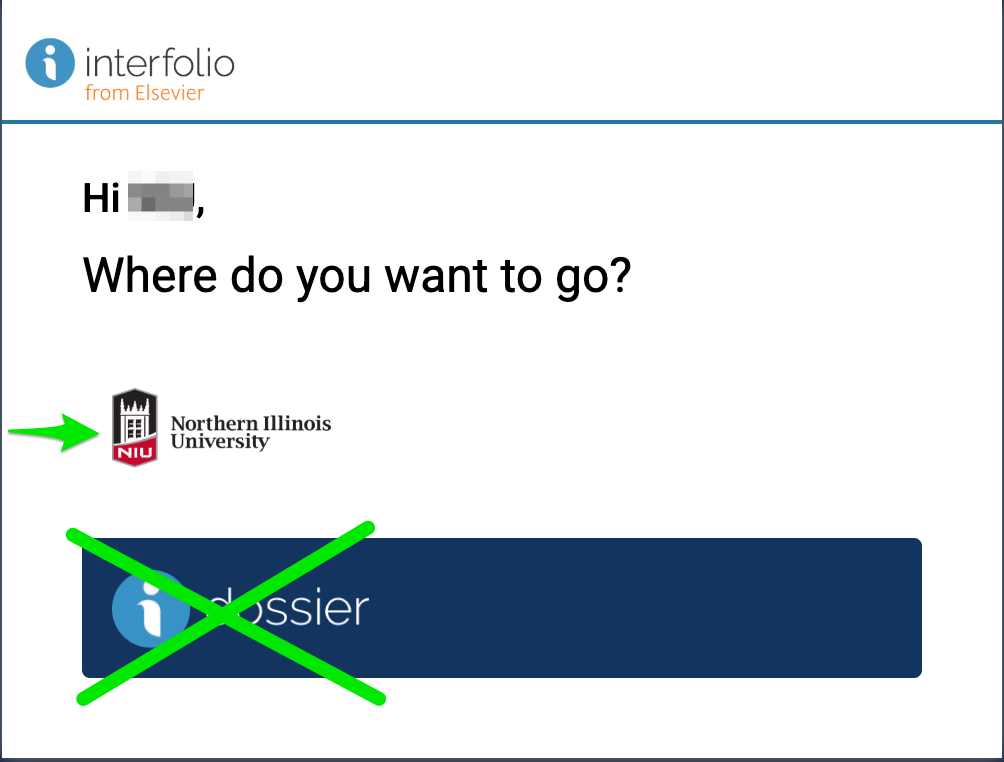
Log In to Interfolio and enter your NIU Account ID and password where prompted. On the “Where do you want to go?” screen, click the NIU logo (not the Interfolio Dossier logo).

From your dashboard, click Cases in the left navigation menu to see the cases assigned to you. Locate the faculty candidate and click their name to open the case.
Important: Do not click the Interfolio Dossier logo on the login screen. That area of Interfolio is not used by NIU and may cause confusion.

If you do not see a faculty candidate case that you are expecting to find, contact your college case manager and request that they confirm that the faculty candidate has submitted their packet and that the case has been opened to the external review step.

2
Navigate to the External Evaluations section
Within the candidate's case, look for a section or tab labeled External Evaluations. This section is specifically designed for managing letters from outside reviewers and is separate from internal committee review areas.
3
Review the candidate's materials available to external reviewers
Before inviting reviewers, confirm that the candidate has uploaded their materials to the section labeled Materials to Share with External Evaluators in their packet. Reviewers will be granted restricted, temporary access only to those specific materials—not to the candidate’s full packet or to NIU’s Interfolio system. If materials are missing, ask the candidate or your college case manager to address this before you send invitations.
4
Add external evaluators
Click Add Evaluator (or “Request Evaluation”) within the External Evaluations section. Enter the evaluator’s name and email address. Interfolio will send them an automated invitation email. You may add evaluators one at a time or in bulk, depending on your department’s needs.
Tip: Confirm evaluator email addresses carefully before submitting. Invitation emails are sent automatically once you save.
5
Customize the invitation message and select shared materials
Interfolio provides a template invitation letter that includes language directing evaluators to keep materials confidential. Review the template and add any department-specific instructions or context as needed. You will also select which of the candidate’s documents to share with each evaluator. Only the materials you designate here will be accessible to the reviewer.
6
Set a response deadline and send the invitation
Enter a due date for the evaluation letter. This should align with your department’s promotion and tenure timeline. Review all details, then click Send to send the invitation. The evaluator will receive an email with a secure, unique link to access the shared materials and submit their letter.
7
Monitor evaluator status and send reminders
Return to the External Evaluations section at any time to check the status of each invitation (e.g., Invited, Accepted, Declined, Letter Received). If a reviewer has not responded as the deadline approaches, use Interfolio’s reminder feature to send a follow-up email directly from the system.
  • Invited: invitation sent, awaiting acceptance
  • Accepted: evaluator has agreed and has access to materials
  • Declined: evaluator has declined; add a replacement if needed
  • Letter Received: evaluation letter has been submitted
8
Access and review submitted evaluation letters
Once an evaluator submits their letter, it will appear in the External Evaluations section. You can download individual letters or all submitted letters at once. These documents become part of the candidate’s case and are routed forward as part of the promotion and tenure workflow.
Note: Access to the candidate’s case is controlled at each stage of review. Once the case moves forward in the process, access by earlier-stage reviewers may be restricted per NIU policy.
9
Coordinate with your college case manager as needed
If you encounter issues with case access, incorrect templates, or need to make adjustments to the case setup, contact your college case manager rather than attempting to make changes independently. Case managers are the primary administrators for Interfolio cases at NIU and can assist with configuration issues, adding or removing committee members, and escalating technical problems.

External Review Frequently Asked Questions

When in the promotion and tenure process should I request external reviews?

External reviews should be requested once the faculty candidate has submitted at minimum the CV and materials that they wish to share with external reviewers. Contact your college case manager if you are unsure whether the case is ready.

Be sure to initiate invitations early enough that reviewers have adequate time to respond before your department’s internal deadline. We recommend aligning your requested response date with your departmental timeline established in your bylaws.
What if I don't see a case for my faculty candidate when I login to Interfolio?

There are several common reasons why you might not see your faculty candidate(s) cases when you log in to Interfolio. It may be that the faculty candidate hasn't finished and submitted uploading their CV and materials to share with external evaluators. Or, your college Interfolio case manager may not have yet finished configuring access to the review steps in the case to grant you chair access.

If you don't see a faclty candidate case as expected in Interfolio, contact your college Interfolio case manager.

How does an external reviewer access the candidate's materials?

When you send an invitation through Interfolio, the external evaluator receives an email with a secure, unique link. After accepting the invitation, they can view and download only the materials you designated for sharing—they do not have access to the candidate’s full packet or to any other part of NIU’s Interfolio system. Their access is both restricted and temporary.

When an external reviewer receives the email from Interfolio and they click the link provided in the email, what then do they see?

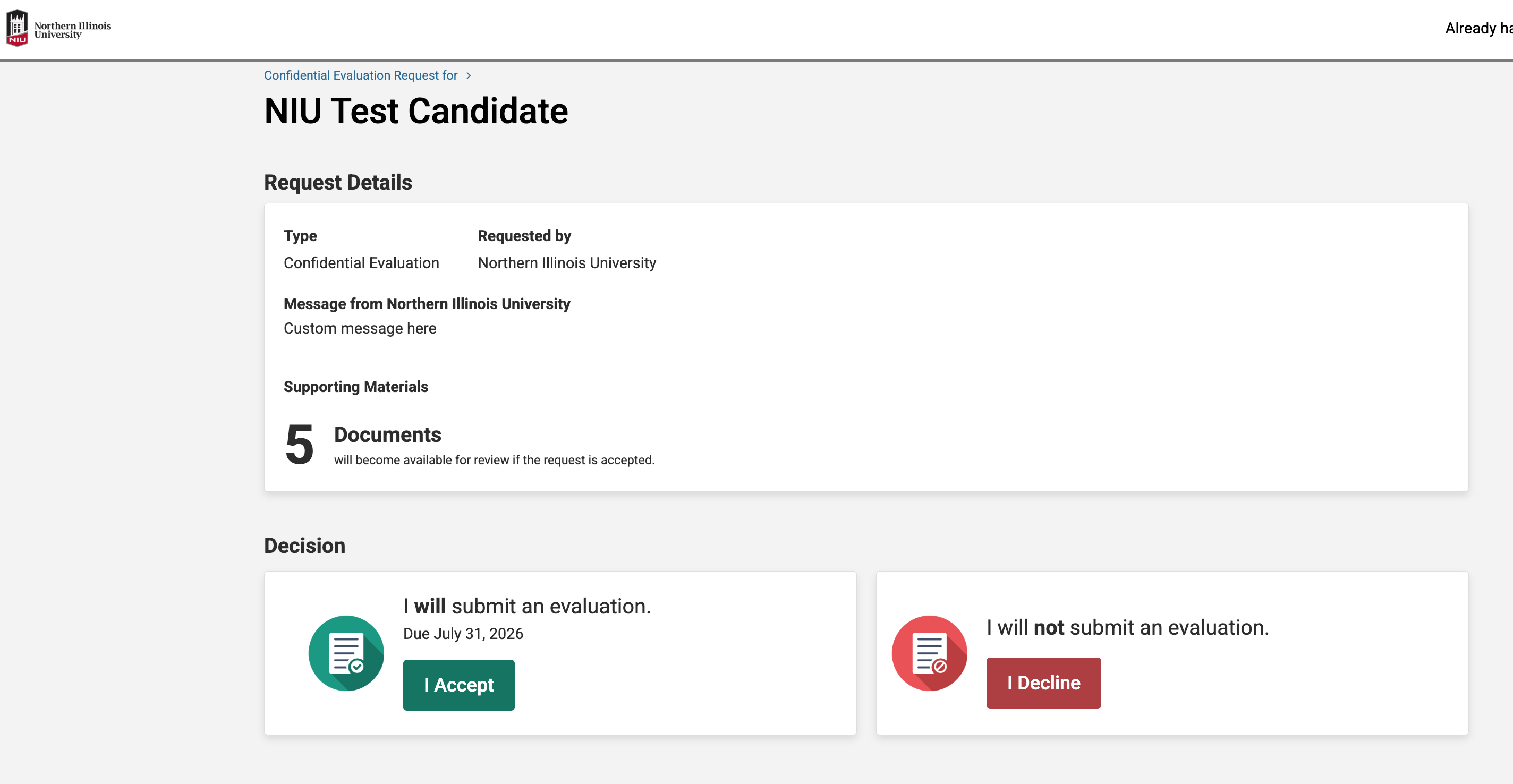
When the invited external reviewer clicks the "View Request" link in the email they receive from Interfolio, they see in their web browser a page where they officially accept or decline serving as a reviewer. 

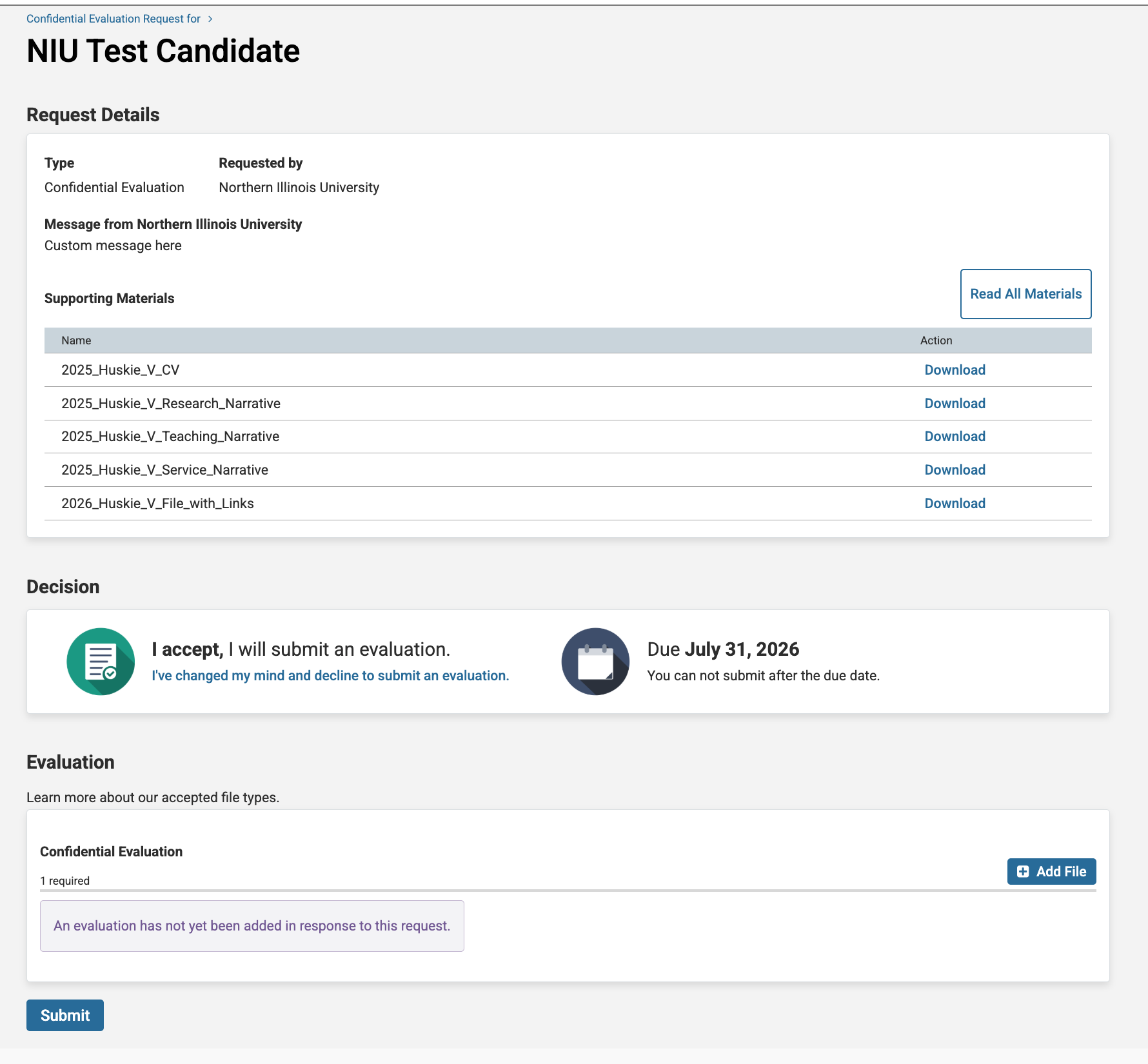
When they click the "I Accept" button, the page then updates to include links to the documents shared from the candidate packet as well as the link for the reviewer to upload and submit their review letter.


What if an external evaluator declines the invitation?

If an evaluator declines, their status in the External Evaluations section will update to “Declined.” You can then add a replacement evaluator using the same process. There is no limit to the number of invitations you can send. Consult your department bylaws for guidance on the minimum number of external evaluations required and whether declined invitations affect that count.

Can I send reminders to evaluators who have not yet responded?

Yes. Within the External Evaluations section, you can send a reminder email directly from Interfolio to any evaluator whose status is still “Invited” or “Accepted” and who has not yet submitted their letter. Interfolio also allows you to set automatic reminders before the response deadline.

What materials can external evaluators see?

Evaluators only see the materials from the candidate’s packet that are specifically designated for external review. These are documents the candidate uploaded to the section labeled “Materials to Share with External Evaluators.” As the department chair initiating the request, you will confirm and select which of those documents to include when setting up each invitation. If the candidate has not yet uploaded materials to that section, ask them or the case manager to do so before you send invitations.

Do I need to notify the candidate that external reviews have been requested?

Interfolio does not automatically notify candidates when external review invitations are sent. Follow the notification practices outlined in your department or school bylaws. Some bylaws require that candidates be informed of the names and affiliations of external evaluators prior to invitations being sent; others do not. Consult your bylaws and the Office of the Provost if you are unsure of your department’s requirements.

Log In to Interfolio

Note: You must log in using your NIU Account ID and password.

Get Help

Interfolio Scholar Services

For technical issues with Interfolio, Interfolio Scholar Services provides live support by phone or email Monday through Friday, 8:00 a.m.– 7:00 p.m. CT. 

833-844-2118 
interfolio-support@elsevier.com

Interfolio at NIU

For questions about NIU polices and procedures related to the preparation and review of promotion and tenure or sabbatical materials, please contact leadership at your department / school, college, or the Office of the Provost. Questions best addressed by the Office of the Provost can be directed to interfolio@niu.edu.