You oversee case setup, ensure reviewers have access, manage deadlines and facilitate the review process. You may also communicate with candidates and committees.
Interfolio Promotion and Tenure Quick Guide for Committee Managers
These instructions are currently for the 2025-2026 cycle and are in the process of being updated for the 2026-2027 cycle.
This quick guide provides step-by-step instructions for NIU department chairs, department / college personnel committee chairs, and deans reviewing faculty promotion and tenure cases in Interfolio Review, Promotion & Tenure (RPT). It highlights what you need to know to fulfill your role effectively and in alignment with NIU policies.
Your Role as a Committee Manager
As a committee manager (committee chair, department chair / school director, or dean), you are expected to:
- Access and oversee cases assigned to your unit in Interfolio.
- Work closely with your college case manager to ensure committee membership and roles are set appropriately in the system.
- Monitor progress to ensure reviews are completed on time.
- Review the candidate’s submitted materials and external/internal reviews.
- Provide your evaluative statement and/or recommendation at the appropriate stage.
- Record or certify committee vote tallies (if serving as a committee chair).
- Maintain confidentiality at all times.
Case Review Requirements
The minimum required review requirements for individuals with committee manager access within the case review steps are as follows:
Department Personnel Committee Chair
- Review case materials
- Submit department personnel committee vote tally form
- Submit department personnel committee overall recommendation form
Department Chair / School Director
- Review case materials
- Submit department chair vote form
- Complete and upload department chair (Part II) document
- Upload department-level notification sent to candidate
College Council Chair
- Review case materials
- Submit college council vote tally form
Dean
- Review case materials
- Submit dean vote form
- Upload college-level notification sent to candidate
- Upload dean memo sent to provost
Logging into Interfolio
- Go to niu.edu/interfolio.
- Click LOG IN TO INTERFOLIO.
- Enter your NIU credentials (same you use to login to access your email) and follow the prompts to authenticate.
- You will be taken to your Interfolio Dashboard.
Accessing and Managing Cases
- From your Dashboard, click the Cases tab.
- Locate cases under My Tasks.
- Click the candidate's name to open the case.
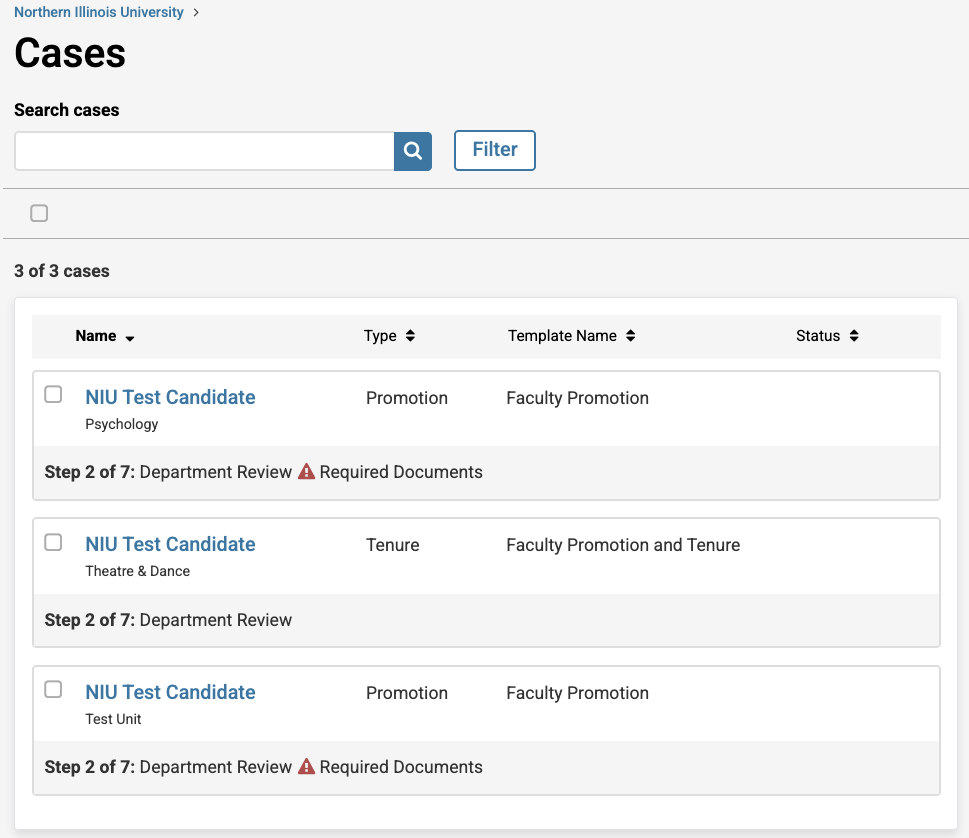
- As a chair or dean, you may see options
- View the case history and reviewer activity.
- Advance the case to the next review step.
- Return the case for revisions if necessary.
Managing Committees (Commitee Chairs Only)
- Confirm committee membership is accurate.
- Add or remove members if necessary (in consultation with your college/unit).
- Assign the committee chair role in Interfolio.
- Ensure the vote tally is recorded in the system once deliberations are complete.
Reviewing Case Materials
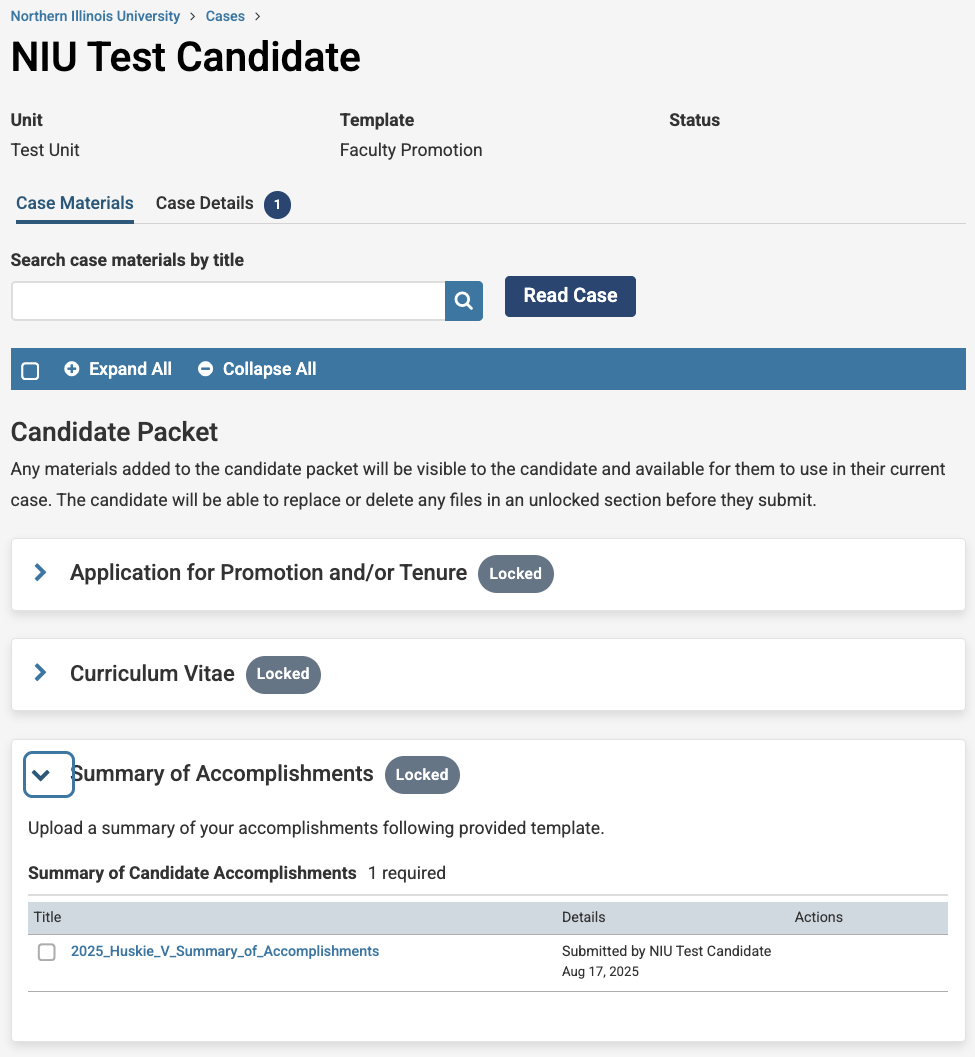
- Navigate to the Case Materials tab.
- Review materials organized by sections (e.g., CV, Teaching, Research, Service).
- Use the Search bar or Filter to find specific documents.
- Use Read Case to open within Interfolio.
- Keep private notes in Private Notes (visible only to you).
Confidentiality and Conflicts of Interest
- Do not discuss case materials outside of official committee or administrative deliberations.
- If you believe you have a conflict of interest, notify the next-level administrator immediately.
- If recused, you will not participate in discussions, voting, or decision-making for that case.
Recording Decisions and Advancing Cases
- Committee Chairs: Record the committee’s vote tally as well as overall recommendation in Interfolio after deliberations.
- Department Chairs and Deans: Upload your evaluative statement/recommendation, notification to candidate, and submit your vote.
- Use the Case Details page to review deadlines and workflow progress.
- Click Send Forward to move the case to the next review step once your role is complete.
Deadlines
- Deadlines, if entered into the system by the Case Administrator, appear on the Case Details page.
- Chairs and deans are responsible for ensuring reviews at their level are completed on schedule.
Troubleshooting and Support
- Technical Help: Contact Interfolio Scholar Services at 833-844-2118 or email interfolio-support@elsevier.com
- Procedural Help: Contact the Office of the Provost
- Resources:
Committee Manager Frequently Asked Questions
Within Interfolio, you can designate committee members and adjust access permissions as needed. Work with your college case manager to ensure the correct reviewers are assigned to your case(s).
You can download individual case documents or all documents together directly from the document reader. Learn more here: Download Case Materials.
Yes, Interfolio allows you to send automated or manual reminders to reviewers about upcoming deadlines.
First, verify their role permissions in Interfolio. If issues persist, email interfolio@niu.edu for assistance.
This usually happens if the incorrect case template was used when setting up the candidate’s case in Interfolio. Committee forms are tied to the case template, which determines whether the options for promotion, tenure, or both appear.
If you notice a mismatch, please check with your college case manager to confirm that the correct case template was applied. If it was not, the case manager can update the case forms to ensure the appropriate options are available for recording committee recommendations and vote tallies (whether for promotion, tenure, or both).
Have more questions?
Email interfolio@niu.edu and a member of our Interfolio at NIU team will be back in touch as soon as possible!
Note: You must log in using your NIU Account ID and password.
Get Help
Interfolio Scholar Services
For technical issues with Interfolio, Interfolio Scholar Services provides live support by phone or email Monday through Friday, 8:00 a.m.– 7:00 p.m. CT.
833-844-2118
interfolio-support@elsevier.com
Interfolio at NIU
For questions about NIU polices and procedures related to the preparation and review of promotion and tenure or sabbatical materials, please contact leadership at your department / school, college, or the Office of the Provost. Questions best addressed by the Office of the Provost can be directed to interfolio@niu.edu.