Manager Job Aid
Complete a Team Member's Evaluation
How to open Manager Self Service, evaluate a direct report, attach supporting files, share the review, and keep private performance notes, step by step.
Manager Self Service in MyNIU is where you evaluate the people who report to you. Performance documents are created for you automatically each cycle, so you do not build them here; you complete them, share them with the employee, meet, and finalize.
The cycle runs in a fixed order. The employee completes a self-evaluation first; then you complete your evaluation, share it, hold the conversation, and complete the review. The employee then acknowledges it. Anything you keep in Performance Notes stays private to you.
Evaluate a Direct Report
-
1
Getting Started
At the beginning of every evaluation cycle, you will receive a system email stating that the NIU Annual Review was created. To access your employee's evaluation document, you can simply click on NIU Performance Management System within the body of the email, which will take you directly to the Team Documents (skip to Step 5), or access MyNIU Human Resources System via MyNIU page, sign in with Single Sign-On or your NIU User ID and password, and land on the Employee Self Service home page.
NoteKeep in mind that supervisors with multiple direct reports will receive multiple emails from the system, one for each employee under their supervision.
-
2
Switch to Manager Self Service
Your home page opens in Employee Self Service by default. To reach your team's evaluations, open the dropdown in the upper-left corner (next to the page name) and choose Manager Self Service. Find and select the Team Performance tile.
-
3
Choose Between Team Documents and Performance Notes
The Team Performance landing page holds multiple tiles, and it helps to know what each one is for before you click in.
Team Documents is where the actual evaluation documents live and where you complete each review and attach the template you selected on the portal page.
Performance Notes is your private notebook. Use it throughout the year to jot observations you will want to recall when you write the evaluation. Notes are visible only to you. More on this in Part B: Keep private performance notes.
View All Performance Documents feature provides “view only” access to the employee's current and historical documents; if you have any indirect reports, you will be able to utilize this tile to check on the status of their documents.
-
4
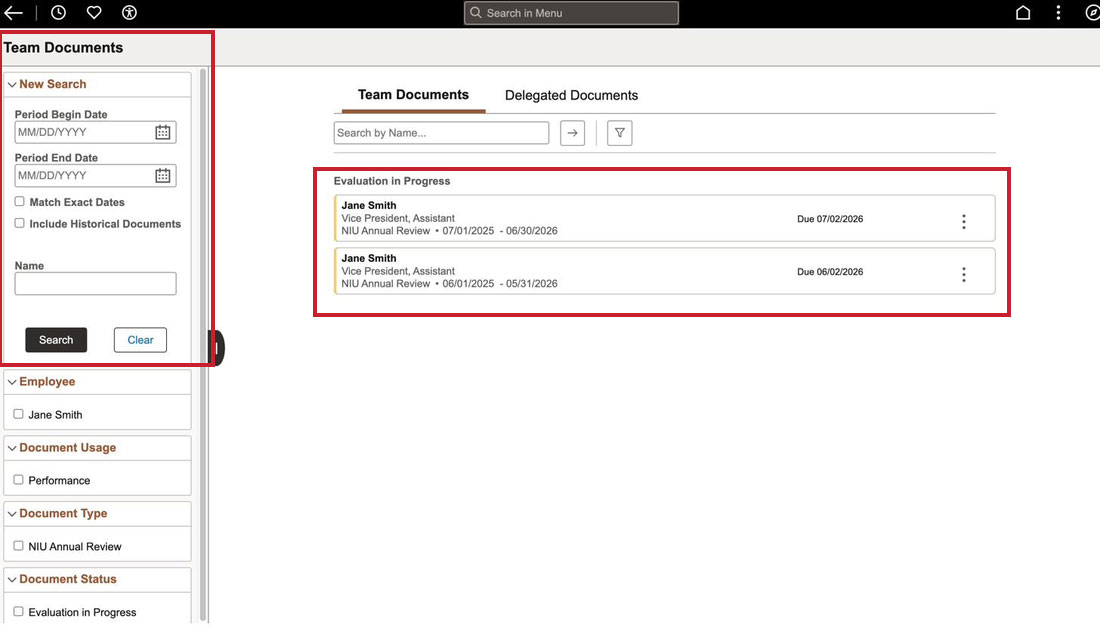
Select Team Documents. This page lists everyone who reports to you and the state of each review. Evaluations currently underway appear under Evaluation in Progress with their due dates.
Use the search bar and filters on the left (period dates, employee, document type, status, and the option to include historical documents) to narrow the list or pull up a prior year's review. The documents themselves appear on the right.
-
5
Review the Evaluation and the Universal Competency
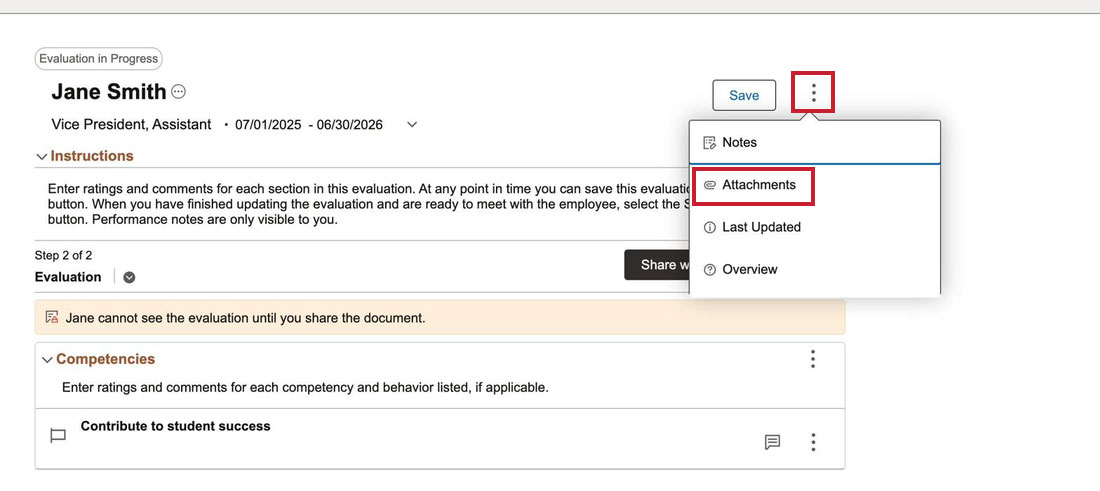
Open a document to review by clicking on the employee name or actions menu (icon with three dots at the top right of the screen) and select "open" to open the document. You are on Step 2 of 2, Evaluation. Every NIU ePerformance document carries the universal competency Contribute to student success; this is where you assess how the employee's role supported that goal during the period.
The amber banner reminds you that the employee cannot see your evaluation until you share the document, so you can work and save freely before you are ready.
-
6
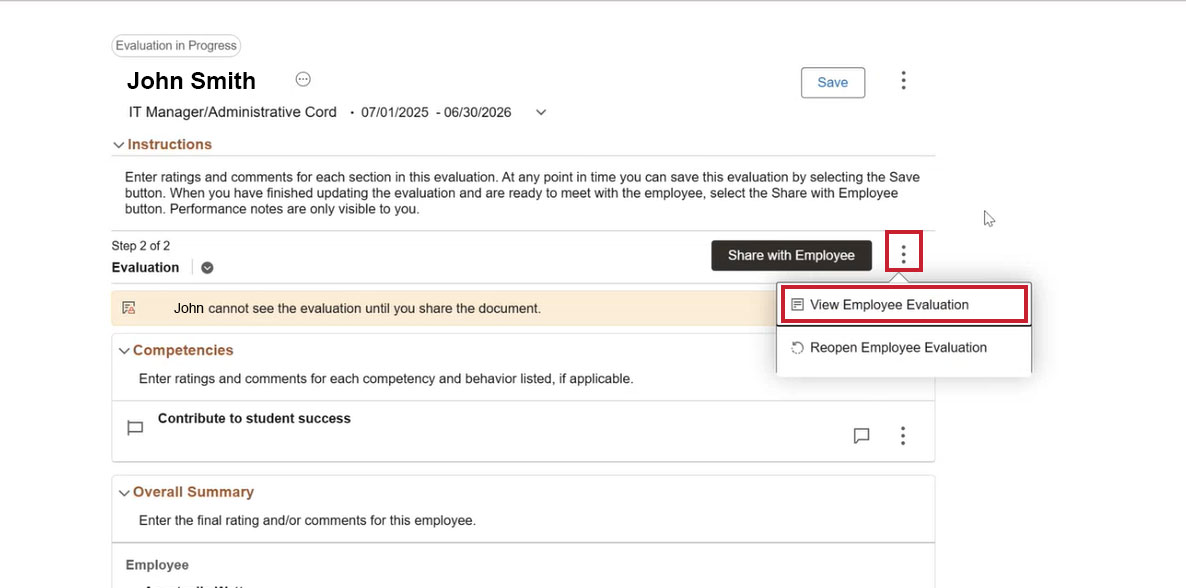
To verify whether your employee added any attachments during the employee self-evaluation part go to View Employee Evaluations option under the actions menu (icon with three dots) next to the “Share with the Employee” button.
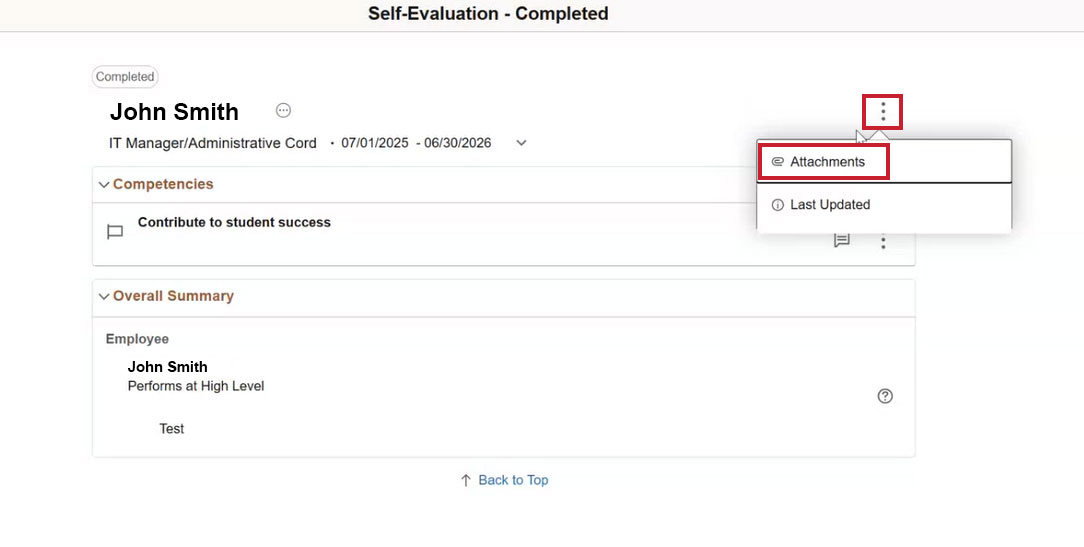
From there, on the new page, select the actions menu next to the employee’s name, and click on Attachments.
If your employee added the attachment, it will appear here. You will also notice the ability to Save to Manager Evaluation.
NoteEmployee attachments will not be considered a part of the official review unless you save them to the Manager Evaluation. Once you Save the employee attachment, it will show up together with your attachments on the main page.
-
7
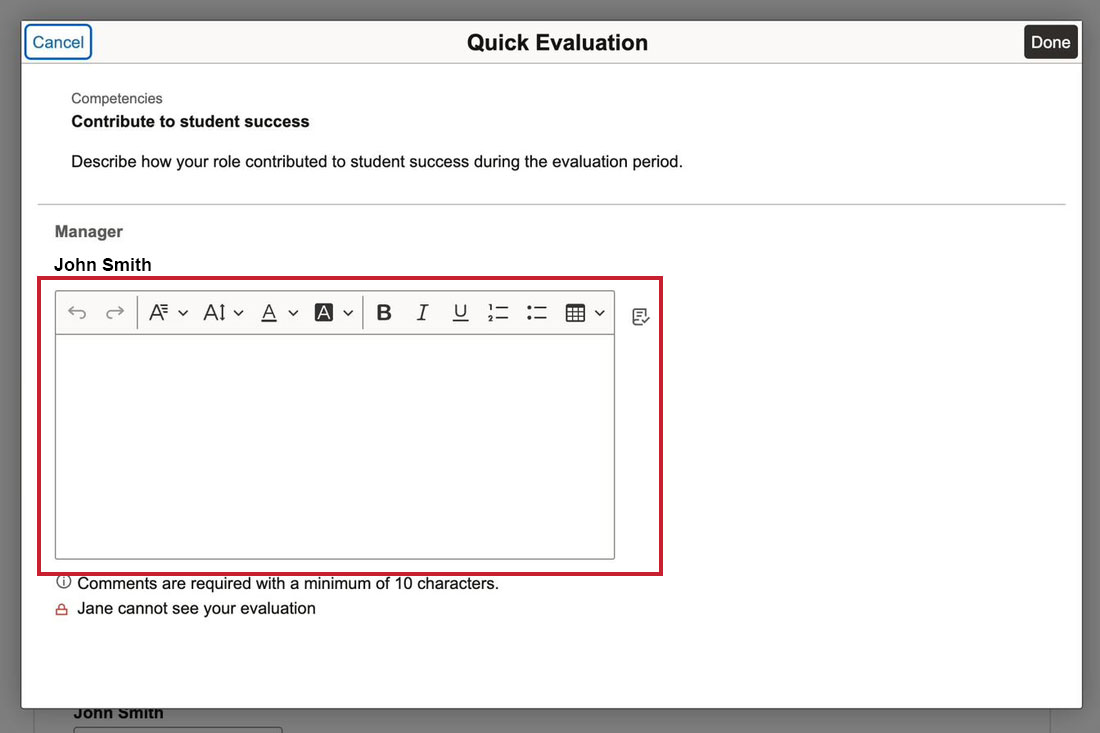
On the competency row, select the comment/quick-evaluation icon (the small speech-bubble box on the right). This opens the Quick Evaluation window where you write your assessment of how the employee contributed to student success. Your comment is required.
This same area is where you can read the employee's self-evaluation responses, so you can weigh what they wrote as you complete your own.
-
8
Provide Your Manager Rating
Scroll to Overall Summary. Under Manager, choose your rating from the dropdown. The scale runs Performs Unacceptably, Performs Marginally, Performs Satisfactorily, Performs at High Level, and Performs Outstandingly. Your rating is mandatory, and an accompanying comment is also required.
-
9
To add supporting files, open the actions menu (icon with three dots at the top right of the screen) and choose Attachments, then Add Attachment, then select Done. In the new window, provide the document description and specify the attachment audience before closing out.
If there is nothing to add, the window reads No Attachments have been added to this document.
Important — Attachments may be visible immediatelyAttachments with no audience selected or with the Employee and Manager audience are visible to the employee immediately. Select Manager Only as the audience to keep the attachment private.
-
10
Share When Your Evaluation is Ready
When your ratings, comments, and any attachments are complete, select Share with Employee at the top of the Evaluation step. Sharing makes your evaluation visible to the employee and sets up the review conversation. Until you share, the employee sees nothing you have written.
-
11
Reopen the Evaluation (Optional)
After you meet with the employee, return to the system to complete the review. You might find yourself in a position where you need to reopen a review, either for yourself or your employee, to make changes to the overall rating or comments section, or simply to add an attachment.
To reopen the review for yourself, choose "Reopen Manager Evaluation" under the actions menu (icon with three dots) next to the Request Acknowledgement or Override Acknowledgement button, depending on which step of the review you are in. To reopen the evaluation document for your employee, repeat this action again and choose Reopen Employee Evaluation under the actions menu (icon with three dots) next to the “Share with Employee” button. -
12
Request Acknowledgement and Complete the Evaluation
You will need to transition the evaluation form to Request Acknowledgement from the employee. Once the employee has acknowledged, you can transition the evaluation to complete.
If an employee refuses or is unable to acknowledge the performance document, as a manager, you will be able to override the employee's signature. This option will appear in place of the “Request acknowledgement” button.
NoteEmployee's acknowledgement does not indicate they agree with the review.
Keep Private Performance Notes
-
13
Open Your Private Notes
Back on the Team Performance home, select Performance Notes. The red line at the top, Performance notes are only visible to you, is the whole point: this is your space, not part of any employee's record. Select Add Note to create one.
-
14
Select Team Member Who the Note Is About
In the Add Note window, the note starts with no one attached (No person has been selected yet). Select Select Team Member and choose the employee. Until you pick a person, the document list at the bottom stays empty.
-
15
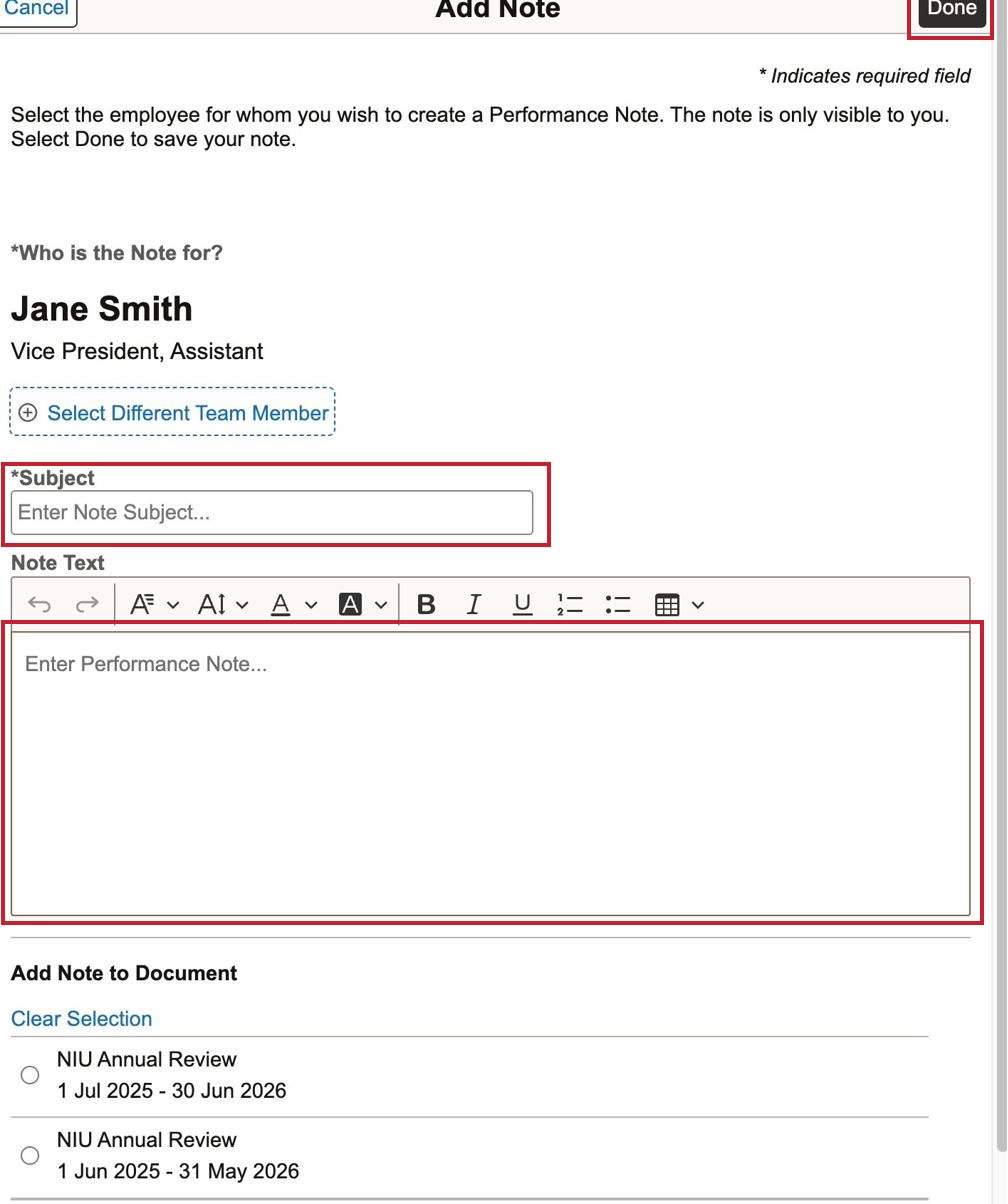
With the employee selected, enter a Subject (required) and your note text. Under Add Note to Document you may link the note to a specific review, such as a NIU Annual Review for the relevant period, so it surfaces when you open that document later. Select Done to save.
Use notes all year to capture specifics while they are fresh; they make writing the evaluation faster and more concrete, and they remain private to you.
-
16
View Attached Notes in the Document
Navigate back to your employee performance evaluation document. You can follow the respective steps in Part A or simply click on the Subject line of the note to open it, and then click on the NIU Annual Review hyperlink.
When the performance document opens up, click on the action menu (icon with three dots at the top right of the screen) and choose Notes.
NoteYou can edit or delete your notes both from the Performance Notes tile as well as within the performance evaluation document after you attached it.