Employee Job Aid
Complete Your Self-Evaluation and Acknowledge Your Review
How to open your performance document, complete your self-evaluation, attach work products, then review and acknowledge your supervisor's evaluation, step by step.
- Part A: Complete your evaluation
- Part B: After You Submit: Review, Meet, Acknowledge
- Part C: Keep Private Performance Notes
Your actual evaluation — the form unique to your role and the conversation about it — happens outside ePerformance. The collection tool confirms the work occurred and holds the record: your overall rating and comments, the universal student success competency, and your completed evaluation form (if applicable).
Your performance evaluation is collected in the ePerformance Collection Tool in MyNIU under Employee Self Service. Each cycle a document is created for you automatically; you complete your self-evaluation first, then your supervisor evaluates you, you meet, and you acknowledge the final review.
Two things stay private to you no matter what: your Performance Notes, and your self-evaluation until you select Complete. Acknowledging the finished review at the end means you have received it, not that you agree with it.
Adding or Writing Your Self-evaluation
-
1
Navigate to Employee Self Service Performance Tile
Open MyNIU at niu.edu/myniu and select MyNIU Human Resource System. On the Employee Self Service home, select the Performance tile.
NoteThe evaluation can be accessed directly through the NIU Performance Management System link in the evaluation notification email.
-
2
Select My Documents
The Performance landing page has two tiles.
My Documents holds the evaluations. Select My Documents to find and open your self-evaluation.
My Performance Notes is your private notebook. Use it during the year to capture highlights or concerns so you can recall specifics when you write your self-evaluation or meet with your supervisor. These notes are visible only to you.
-
3
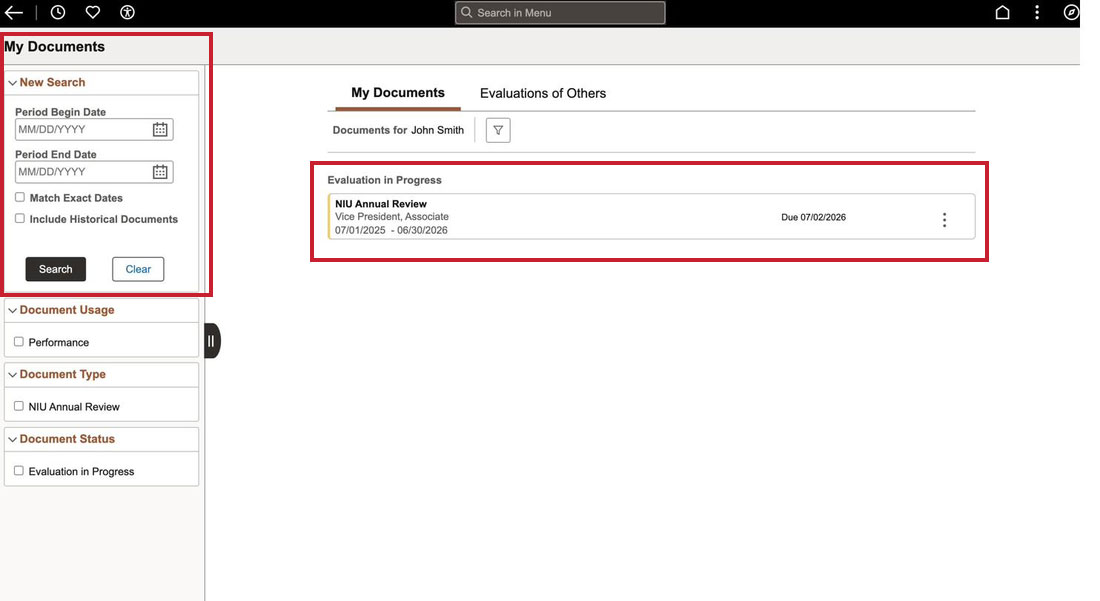
Select My Documents. Reviews currently underway appear under Evaluation in Progress with their due dates. The My Documents tab holds your own reviews.
Use the search and filters on the left (period dates, document type, status, and Include Historical Documents) to pull up past reviews completed in this performance portal.
-
4
Open Your Self-evaluation
The evaluation name is a hyperlink. Click on NIU Annual Review to open the evaluation or click on the actions menu (icon with three dots at the top right of the screen). The amber banner notes that your supervisor cannot see the evaluation until you complete the document, so you can save and return as many times as you need before submitting.
-
5
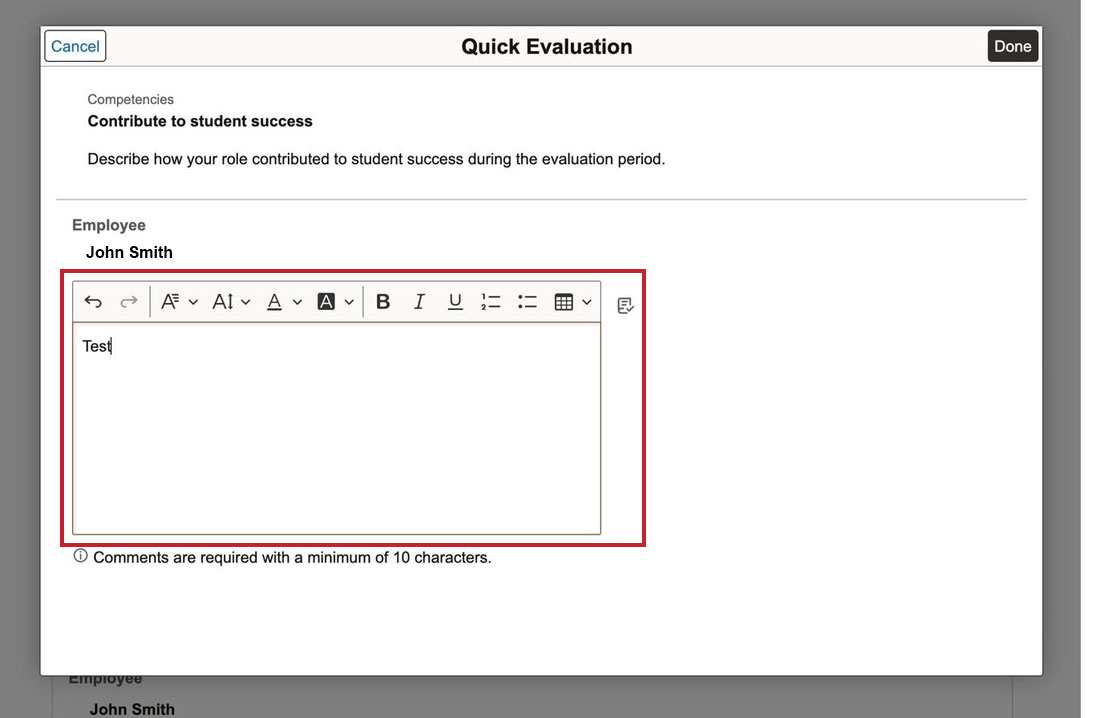
Every NIU review includes the universal competency Contribute to student success. On that competency row, select the comment/quick-evaluation icon to open the Quick Evaluation window, then describe how your role contributed to student success during the period. Your comment is required to proceed with the evaluation.
NoteIf you click the Contribute to student success link on this page, you can navigate back to the main evaluation page by using the back arrow at the top left of the screen.
-
6
Choose Your Overall Self-rating
In Overall Summary, under Employee, select your rating from the dropdown: Performs Unacceptably, Performs Marginally, Performs Satisfactorily, Performs at High Level, or Performs Outstandingly. Your rating is mandatory.
-
7
Add Overall Self-rating Comment
Enter your overall comment in the box below the rating. Save as you go using Save at the top right.
-
8
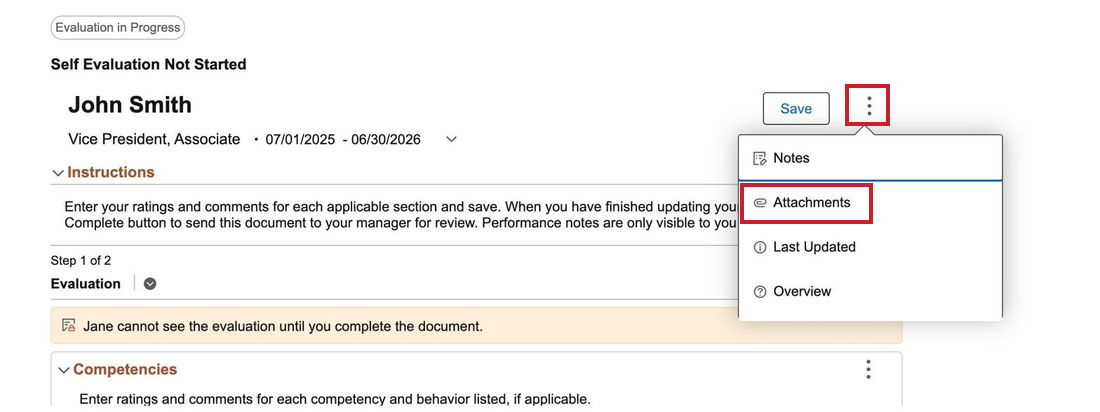
To include supporting material, such as project deliverables or work products you want your supervisor to consider, open the actions menu (icon with three dots at the top right of the screen) and choose Attachments, then Add Attachment. Select the audience that includes your manager if you want your manager to see the file. Leaving the audience blank means only you, the employee, will see the file.
Notes- Your supervisor may also attach files to the document. Supervisor attachments can appear while you are still working on your self-evaluation, so do not be surprised to see an attachment before you have submitted.
- Employee attachments are used as part of the self evaluation for discussion with the supervisor, but they are not part of the official evaluation. Further discussion on attachments can occur with the supervisor.
-
9
Submit Your Self-evaluation
When your rating, comment, and any attachments are done, select Complete at the top of the Evaluation step. The status changes to Self Evaluation Completed, and the banner now reads your supervisor can see the evaluation details in this document. Your self-evaluation is submitted.
Note the orderCompleting your self-evaluation is what makes it visible to your supervisor and opens their step of the review.
After You Submit: Review, Meet, Acknowledge
-
10
Review Your Supervisor's Evaluation
After you submit, your supervisor completes their evaluation and shares it. You will receive an email notification when your supervisor has finished their part. Return to My Documents and open the review to read your supervisor's ratings and comments and to view any attachments they added.
TipAccess the same document from My Documents; you do not need a new link. The email is just the prompt that your supervisor's evaluation is ready to view.
-
11
Acknowledge Your Completed Review
You and your supervisor meet to discuss the evaluation. Afterward, your supervisor confirms the meeting took place and completes the overall review. You then acknowledge the document to close out the cycle.
TipIf you want to go back and make changes to your Self Evaluation after you had a conversation with your supervisor, you can ask your supervisor to reopen your document. Once you entered your changes or added attachments, you will need to resubmit your evaluation by selecting Complete button.
Important—acknowledgment is not agreementAcknowledging the review confirms that you have received and reviewed it. It does not mean you agree with the ratings or comments. If you disagree, acknowledging still records that the review was delivered to you; raise any disagreement through the normal channels with your supervisor or HR Services.
Keep Private Performance Notes
-
12
Open Your Private Notes
Back on the Employee Self Service page, select the Performance tile, and then select My Performance Notes. The red line at the top, Performance notes are only visible to you, is the whole point: this is your space, and no one will see these notes, whether you attach them to your evaluation or not. Notes are not a part of the official review. Select Add Note at the top right corner to create one.
-
13
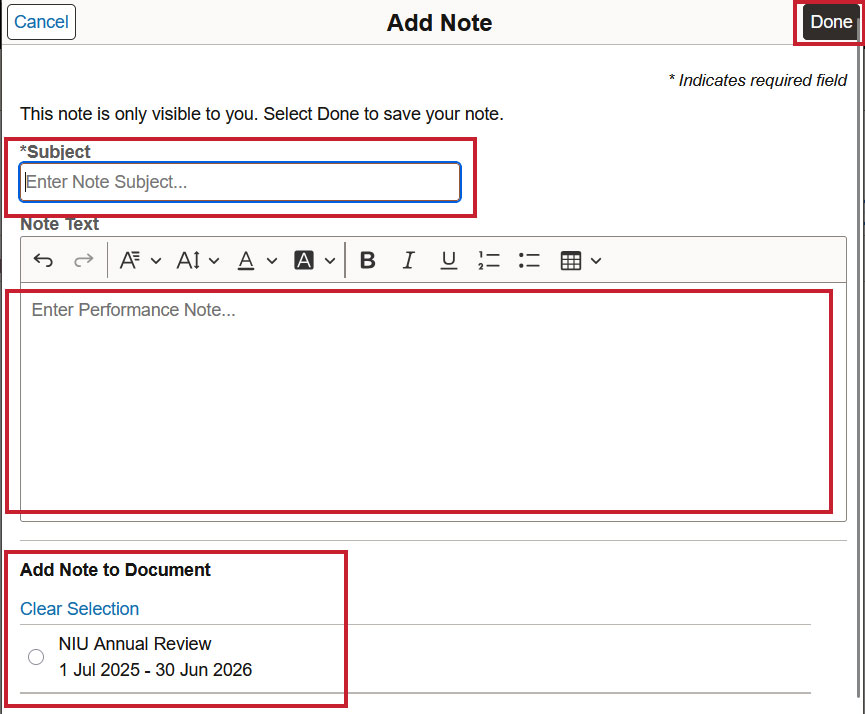
In the Add Note window, enter a Subject (required) and your note text. Under Add Note to Document you may link the note to a specific review, such as a NIU Annual Review for the relevant period. If you don’t see a document to attach your note to, it means that you do not have any open evaluations at this time. Select Done to save.
TipUse notes all year to capture specifics while they are fresh; they make writing the evaluation faster and more concrete, and they remain private to you.
-
14
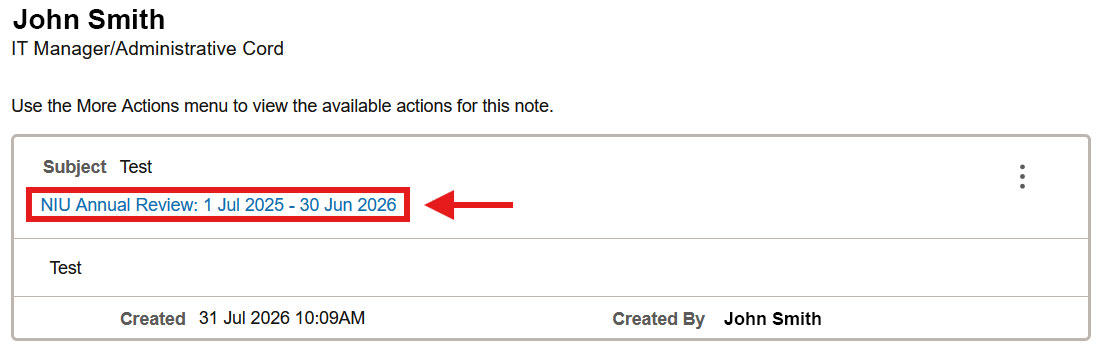
Navigate back to your performance evaluation document. You can follow the respective steps in Part A or simply click on the Subject line of your note to open it, and then click on the NIU Annual Review hyperlink.
When your performance document opens up, click on the Action menu (icon with three dots at the top right) and choose Notes.
NoteYou can edit or delete your notes both from the My Performance Notes tile, as well as within the performance evaluation document after you attached it.