The new Gradebook Grid View will be included in the August 6, 2026 update.
Gradebook (Ultra) - Frequently Asked Questions
2026 New Gradebook Update
No. Your grades, grade calculations, and overall grade configuration are untouched. Only the visual interface of the Grid View is changing.
The Students tab has been removed. To view a student’s individual details (progress, activity), click the student’s name in the gradebook. This takes you to the same student-level information.
In the new Grid View, the top of each column shows the number of grades that still need to be posted (via the paper airplane icon). To see whether an individual student’s grade is posted, click that student’s cell to open the Grade Details panel; it shows posting status clearly.
To enter edit mode, hover near the top of the column until the purple pencil icon appears and click it, or tab to the icon using your keyboard. The column enters edit mode and you can type grades directly into each cell.
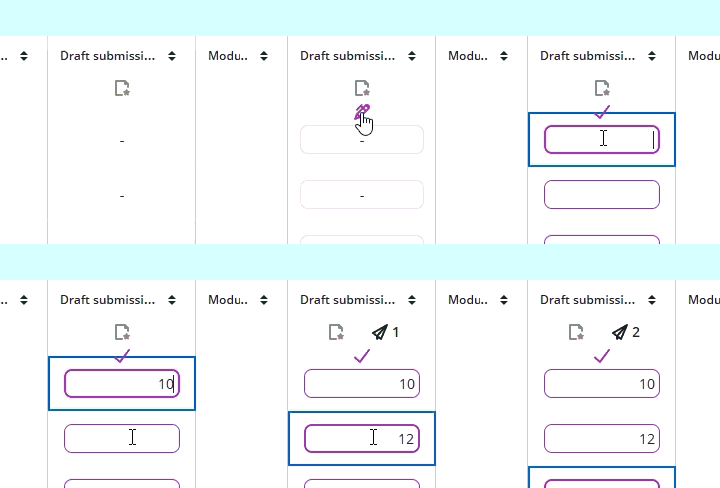
Press Enter to advance to the next student or use the down arrow key. Click the checkmark in the column header or press the Esc key to exit edit mode. Grades will autosave.
Download and upload have moved to the Gradebook Settings panel. Click the settings icon (gear) in the top right of the gradebook to access them. The functionality is the same; only the location has changed.
They’re still there, just reorganized. In the new Gradebook, exceptions (due date changes, access date changes, additional attempts) and exemptions are all accessible from the Grade Details panel under a section called Accommodations. Click any student cell to open the panel. There are no changes to how course-level accommodations are set.
New in this release: if a student has a course-level accommodation, the details are now displayed directly in the Grade Details panel, so you no longer have to navigate away to check.
A purple dot in a student’s cell indicates there is a new, ungraded submission. You can click the dot or the cell to open the Grade Details panel and then navigate to the submission from there. The number at the top of the column shows how many items need grading for that assessment.
For group submissions, you may notice more purple dots in the grid than the number shown in the column header. This is expected — each student in a group shows their own dot, while the column header counts the number of groups that need grading.
Yes. The List View (Gradable Items) is unchanged. You can toggle between Grid View and List View at any time using the buttons at the top of the gradebook.
General Gradebook
In Ultra Course View, you can calculate the Overall Grade based on Points, a Weighted calculation, or an Advanced custom calculation.
To calculate your Overall Grade via Points, click the Overall Grade column and select the Points tab. Ensure that all of the items to be included in the calculation are listed and that the Points total at the bottom of the page is accurate.
You can exclude items from the calculation by clicking the No icon (a circle with a slash). You can also add calculation rules to a category to drop the lowest grade(s) from a category. Other than for calculation rules, Categories have no influence on Points calculations.
To drop grades in a grade calculation, you must be using categories for your calculation. To drop a grade from a category, click the Edit calculation rules link next to the category name. In the side panel, you can specify the number of grades you would like to remove from the calculation, and whether you want to remove the highest or lowest grades. The most common application is to remove a specified number of lowest grades.
Learn more about calculating overall grades.
Downloading grades allows you to save a copy for offline access or to enter grades in a spreadsheet that you then import into Blackboard. In some circumstances, this may save you time on entering grades.
- From the Gradebook, open the Settings panel by clicking the gear icon in the upper right.
- Click the Download grades link.
- Choose whether to download the full gradebook or grade history.
- Select All items or the checkboxes for the specific items you want to download.
- Select the file type for the downloaded file. Data files are comma-delimited (CSV) or tab-delimited (XLS). Both can be opened with Microsoft Excel.
- Select the location for the download. You can save the file to your device or select a folder in the Content Collection.
- Click Download
You can upload a grade file you worked on offline and update your gradebook.
- In the Gradebook, open the Settings panel by clicking the gear icon in the upper right.
- Click the Upload gradebook link.
- Find the correct file and wait for it to be uploaded.
- Select the columns to be uploaded and click the Upload button.
In the downloaded file, be sure to clear any cells you want to add a new grade to. For example, if "Ready to Post" appears with a grade, remove the text and the grade.
You can drag a file from your computer and drop it in the "hot spot" of the upload panel. You can also browse your files or use one you stored in the Content Collection.
In the panel, you can review the list of columns you changed in the file you want to upload. Clear the checkboxes for any data you want to exclude from the upload.
Answers to questions about the Blackboard Original Grade Center are available here.
Looking for More Answers?
Ask Your Blackboard Question
Not finding the answer to your Blackboard question? Submit your question to our NIU Blackboard support experts!
Get Help
Technical Support and Student Help
Division of IT Service Desk815-753-8100
servicedesk@niu.edu