Completing a Test, Quiz, or Survey in Blackboard
Tests, Quizzes and Surveys are types of assessments that faculty may create in Blackboard to test the knowledge and skill level of the students enrolled in the course.
For tests and quizzes, the faculty member usually assigns point values to questions, and when students' answers are submitted for grading, the results are automatically recorded in Blackboard's Grade Center. Surveys are not assigned a point value, but the submission process is the same.
There are many types of questions that can be included in a Test or Survey. Common question types that are auto-graded include:
- Multiple Choice
- True/False
- Matching
- Fill in the Blank
Essay or Short Answer questions may also be assigned and are answered in the provided text box. These question types are manually graded by the faculty member.
How to Submit
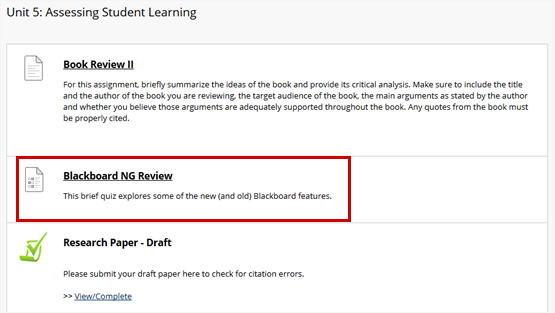
Tests/quizzes and Surveys are typically located within the Assessments Content Area.
- Locate an test in a Content Area and click the link associated with it.
- Click Begin to take the test or survey.
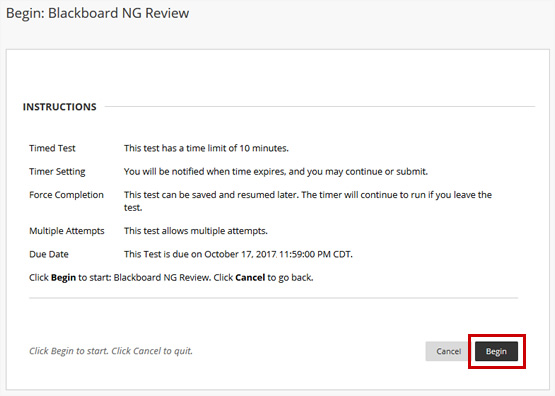
Note: Faculty may choose to have students enter a password to begin taking a test or survey. If necessary, enter the password and click Submit to begin. The test continues to prompt for a valid password until the correct one is entered.
If the test/survey is timed, the remaining time appears at the top of the page.
WARNING! It is important that you do not use your browser's Back button during a test. This may interfere with your ability to continue the test.
Learn More
Get Help
Technical Support and Student Help
Division of IT Service Desk815-753-8100
servicedesk@niu.edu